
When a session manager helps
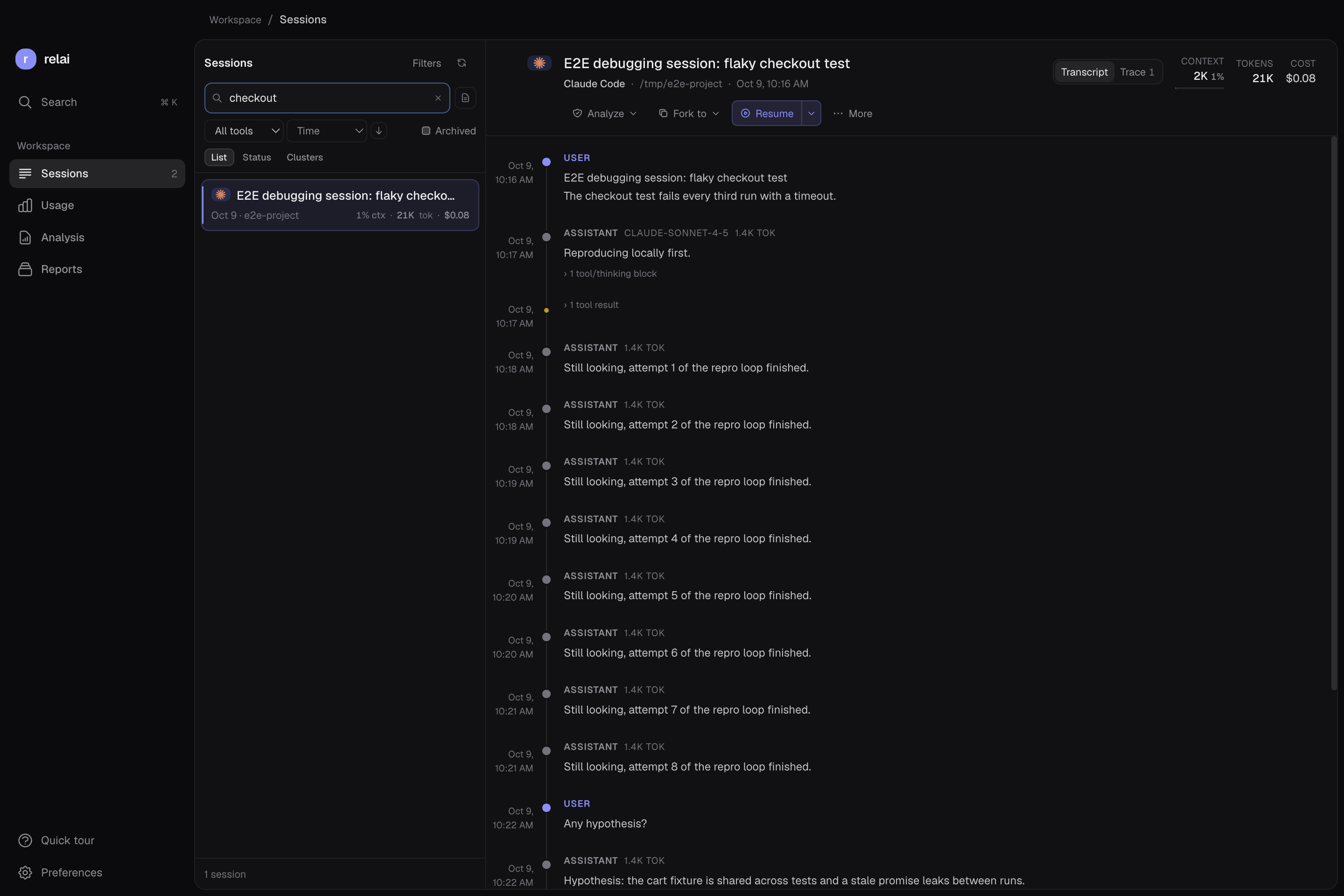
You worked on a bug last week, switched projects, and now need the conversation that explains a particular decision. A terminal history can tell you what command you ran. A session transcript can tell you why you ran it.
relai reads Claude Code’s saved sessions alongside other supported coding tools. Use it when you need to browse several projects, inspect the messages before reopening a session, or continue the work in Codex. If you already know the session ID, the native resume command may be all you need.
Find the right conversation
- Open Sessions and narrow the list. Choose Filters, then Claude Code. If you use project workspaces, select the relevant project too. Clear unrelated filters if the list looks unexpectedly empty.
- Search for something you remember. Start with the session title or project. To find a phrase from the conversation, enable the adjacent transcript-search button; the field changes from Search sessions… to Search transcripts…. An error message or distinctive filename is often a better clue than a broad topic.
- Read before reopening. Select a session, check its working directory and recent messages, then use Find in transcript… for the exact phrase. Confirm this is the conversation with the decision or unfinished task you need.
Searching a transcript and resuming it solve different problems: search recovers the evidence; resume brings the conversation back into the coding tool.
Resume or start fresh
Choose Resume in the transcript toolbar to reopen the existing Claude Code conversation. The menu beside it lets you explicitly choose Open here — built-in terminal or Open in terminal app. The built-in terminal runs your installed CLI inside relai; it does not provide a separate Claude account.
For a new conversation informed by the old work, choose Start fresh with context from the same menu. That builds a handoff primer and starts a new session in the same tool. It is useful when you want a fresh conversation, but its context is selected or summarized rather than an exact restoration of the old conversation.
Before asking the assistant to edit anything, check that the project folder is available and inspect the current files. Resuming a conversation does not roll your repository back to its earlier state. Claude Code must be installed, authenticated and able to access the project.
The native CLI alternative
If you know the session ID and have the project locally, you can resume directly from a terminal in that project:
claude --resume <session-id>Without an ID, run claude --resume to open Claude Code’s interactive conversation picker. This uses the tool’s native resume capability without adding a session manager. Your existing provider usage and access requirements still apply. relai adds the browse, filter and transcript-inspection workflow around that command.
If a session is missing
- Check filters and archives. Clear your search, broaden the source/project selection and include archived sessions.
- Refresh the list. Use the refresh button in Sessions after the coding tool has written new session data.
- Check the source location. Claude Code normally saves sessions under
~/.claude/projects/. A different user account, custom configuration or another machine can mean the files are outside the location relai reads. - Check the project folder. A visible transcript does not prove its original working directory still exists. Restore or locate the checkout and confirm the files before continuing; a context handoff is not a substitute for missing source code.
For a broader overview of the interface, watch the general relai demo. For switching assistants, follow the Claude Code to Codex handoff guide.
Frequently asked questions
Does relai replace Claude Code?
No. relai is a desktop app for browsing and organizing session history. Claude Code still runs the resumed conversation, so its CLI must be installed and authenticated.
Can I search inside older Claude Code conversations?
Yes. In Sessions, enable the transcript-search button beside the search field to search message content. Open a session and use Find in transcript to locate a phrase within that conversation.
Does archiving delete my Claude Code session?
No. relai keeps its own archive state in its cache. It reads tool-native session data without modifying the source files. Include archived sessions in your filters to find them again.
Is all session processing local?
Browsing session history uses local files and relai’s local cache. Optional AI features can send selected session content to the configured provider, including TypeSafe or your summarizer. Review your settings and the privacy policy before enabling those workflows.
Keep your next session within reach.
Use relai to browse your coding history and choose where to continue.
macOS 12+ on Apple Silicon. Windows 10/11 x64 is an unsigned beta. Your coding tools and provider accounts are separate.